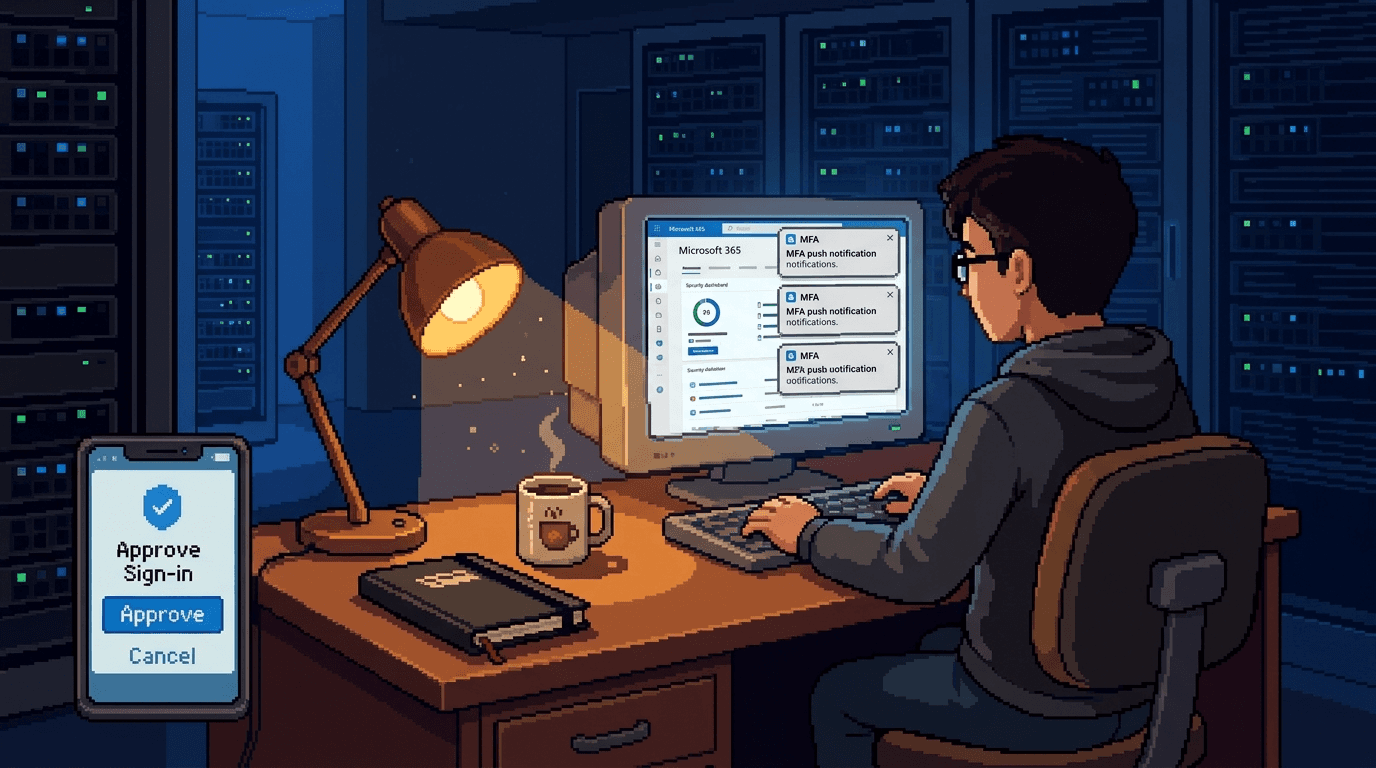
TL;DR - MFA fatigue is no longer just a string of annoying push prompts. An attacker may combine stolen credentials, prompt bombing, an adversary-in-the-middle phishing proxy, and session-token theft. Watch for a sudden burst of MFA activity against one account, then correlate it with unfamiliar IP addresses, devices, applications, locations, and authentication-method changes. What you need to do: move privileged users to phishing-resistant MFA, verify number matching, block legacy authentication, test session revocation, and give your service desk a first-hour runbook.
On Monday morning, the most useful identity report in your tenant may be the one with a single employee's name repeated five times in ten minutes.
I have watched teams dismiss that pattern as a phone problem, a user testing a new handset, or Microsoft Authenticator having a strange morning. Sometimes it is. Sometimes it is someone outside the business pressing the same doorbell until a tired person lets them in.
The harder version adds an adversary-in-the-middle, or AiTM, phishing proxy. The attacker relays a real sign-in page, captures the credentials and authenticated session, then replays the stolen cookie. The user may complete MFA correctly and still lose the session.
That changes the job. “We enabled MFA” is not the finish line. You need signals that show the pressure building, controls that resist replay, and a response that removes active sessions rather than only changing a password.
An unexpected MFA prompt is an incident signal, not a nuisance notification.
What the attack chain looks like
A common MFA fatigue sequence is:
- The attacker obtains a username and password through phishing, password reuse, malware, or another breach.
- They attempt a sign-in and trigger repeated push notifications.
- They contact the employee while the prompts are arriving, pretending to be the helpdesk, or send the employee to an AiTM phishing page.
- The employee approves a prompt, enters number-matching details for the caller, or completes a valid challenge through the proxy.
- The attacker receives a session token and starts using Microsoft 365 or another cloud service as the employee.
Prompt bombing and AiTM are related paths, not one mandatory sequence. Number matching makes blind approval much harder, but it does not make a user safe if an attacker can persuade them to enter the displayed number or relay a complete sign-in through a phishing proxy.
Guest accounts deserve the same attention. An old contractor account with broad access and weaker home-tenant controls can bypass the assumptions behind your workforce policies. Review external identities as identities, not as exceptions that never expire.
Detect the burst before you investigate the story
The highest-value early signal is a burst of MFA activity for one account. It is useful because it is simple, local to your tenant, and available before you know whether the employee clicked anything.
In Microsoft Entra sign-in logs, look for repeated authenticator activity in a short window. This starter query is intentionally broad. Test it against your own SigninLogs schema and tune the method names and threshold before turning it into an alert:
SigninLogs
| where TimeGenerated > ago(24h)
| mv-expand AuthDetail = AuthenticationDetails
| extend Method = tostring(AuthDetail.authenticationMethod)
| where Method has "Authenticator"
| summarize Attempts=count(),
    IPs=make_set(IPAddress, 5),
    Apps=make_set(AppDisplayName, 5)
    by UserPrincipalName, bin(TimeGenerated, 10m)
| where Attempts >= 5
| order by Attempts desc
Five attempts in ten minutes is a starting threshold, not a universal truth. Baseline your tenant. A warehouse with shared devices, a field team moving between networks, and a professional-services office will produce different patterns.
When an account trips the threshold, correlate it with:
- unfamiliar IP addresses, autonomous systems, countries, and devices
- failed and successful attempts against the same user
- new authentication methods or device registrations
- sign-ins to Exchange Online, SharePoint, Teams, Azure, and admin portals
- impossible or atypical travel detections from your IdP
- user-agent changes and access from unmanaged devices
- new OAuth consent grants, inbox rules, forwarding, or mail delegation
Okta teams can build the same pattern from System Log authentication events. Duo teams can use the Authentication Log and Admin API to group denied or fraudulent push results by user and time window. The product syntax changes. The detection idea does not.
Four controls to verify this week
1. Put privileged users on phishing-resistant MFA
FIDO2 security keys, passkeys, and Windows Hello for Business bind authentication to the legitimate site. That origin binding is what defeats a proxy trying to replay a credential at a lookalike domain.
Start with Global Administrators, identity administrators, finance, HR, service-desk leads, backup administrators, and anyone who can reset another person's authentication methods. A staged rollout to twenty high-impact accounts is better than a six-month project plan that protects nobody today.
Keep two emergency access accounts with strong, separately controlled credentials and tested alerting. Do not use them as daily admin accounts.
2. Verify number matching and sign-in context
Microsoft has enforced number matching for Authenticator push notifications since 2023, but inherited settings and mixed authentication methods are still worth reviewing. Confirm that your active methods show the application and approximate sign-in location where supported.
Then train staff on one sentence: if you did not start the sign-in, deny the prompt and call IT using a known number. Do not ask them to read numbers back to an inbound caller. Your service desk should never need that.
Number matching reduces accidental approvals. It does not replace phishing-resistant MFA for privileged or high-risk accounts.
3. Use risk and device context, then block legacy authentication
“Impossible travel” is usually an identity-risk detection, not a universal standalone conditional-access switch. In Entra, risk-based policies require the appropriate Entra ID Protection licensing. Use sign-in risk, user risk, named locations, compliant-device state, and authentication strength to shape access where your licence supports them.
Roll policies out in report-only mode first, inspect the impact, exclude only documented emergency accounts, and have a tested rollback owner. For medium or high-risk sign-ins, require a stronger authentication method or block access according to your tolerance and support model.
Block legacy authentication separately. POP, IMAP, SMTP AUTH, and older Office clients can provide paths that do not satisfy modern MFA controls. Check service accounts before enforcement, replace their dependency, then close the gap instead of leaving a permanent broad exclusion.
4. Make session revocation a rehearsed action
A password reset does not reliably remove every session already in use. Your runbook must include revoking refresh tokens and active sessions, disabling the account when warranted, and checking connected applications and authentication methods.
For Microsoft Entra, test the permissions and command path for Revoke-MgUserSignInSession before an incident. In Okta, test the administrator workflow to clear user sessions. In Duo, know which action disables the factor and where the upstream application session must also be terminated.
Write down who can do this after hours. A technically perfect control that waits for Tuesday morning is not a response plan.
Your Monday-morning checklist
Give this list to whoever owns identity before the first meeting of the week:
- Run the 24-hour MFA burst query and review every result with context.
- Confirm number matching and sign-in context are enabled for push users.
- List privileged accounts still using SMS, voice, TOTP, or push as their strongest method.
- Schedule FIDO2, passkey, or Windows Hello enrolment for that list.
- Review conditional-access policies, report-only results, exclusions, and emergency accounts.
- Confirm legacy authentication is blocked, or document each remaining dependency and owner.
- Review guest accounts and contractors with sensitive application access.
- Test session revocation with a non-production account and record the result.
- Send staff the deny-and-call message, including the known internal number.
- Monitor burst alerts, risky sign-ins, new authentication methods, and mail persistence for the next 14 days.
If one may have succeeded: the first 60 minutes
Minutes 0 to 10: validate and contain
Contact the employee through a known channel. Ask whether they initiated the sign-in, approved a prompt, entered a number, followed a link, spoke to “IT”, or downloaded anything.
Preserve the relevant sign-in and audit records, then disable sign-in if the evidence supports compromise. Revoke active sessions and refresh tokens. Reset the password from a trusted administrative session. Do not rely on the reset alone.
Minutes 10 to 30: remove identity persistence
Review and remove unknown authentication methods, registered devices, app passwords, enterprise-app consents, and delegated access. Check whether the attacker added a new factor before you removed the old one.
For Microsoft 365, inspect inbox and forwarding rules, mailbox delegation, sent items, deleted items, OAuth grants, and administrative role changes. Check SharePoint and OneDrive access to sensitive material.
Minutes 30 to 60: scope and communicate
Search for the same IP addresses, user agents, applications, and device identifiers across other accounts. Review service-desk tickets and recent authentication-method resets. Attackers rarely test only one door if they have a list.
Record a timeline, assign an incident owner, notify leadership and privacy counsel according to your plan, and preserve evidence before cleaning up more broadly. For an Australian organisation, assess whether the Notifiable Data Breaches scheme or a ReportCyber submission may apply. That decision needs facts, so start collecting them immediately.
Do not re-enable the account until the user is on a trusted device, malicious persistence is removed, required factors are re-registered, and monitoring is in place.
Key takeaways
- Treat prompt bursts as telemetry. Alert on concentration per user, not only aggregate failure counts.
- Use number matching as a floor. Privileged accounts need phishing-resistant MFA.
- Separate travel detection from access policy. Correlate the risk signal, then enforce through supported conditional-access controls.
- Block old protocols. Legacy authentication can undercut an otherwise sensible MFA deployment.
- Revoke sessions. Password rotation without token containment leaves the attacker room to continue.
- Rehearse the hour. The right administrator, permissions, commands, and escalation contacts must be known before the alert.
FAQ
Does number matching stop MFA fatigue?
It stops blind approve-and-deny prompting from being easy. It does not stop social engineering, AiTM phishing, session theft, or an attacker who convinces the employee to share the displayed number.
Is impossible travel enough to block the attack?
No. It is one risk signal and can produce false positives through VPNs, mobile networks, and cloud egress. Correlate it with authentication details, device state, IP reputation, and user behaviour, then apply a tested policy.
Should I disable push MFA immediately?
Prioritise phishing-resistant MFA for privileged and high-impact users, then migrate the broader workforce in stages. If push remains, keep number matching, sign-in context, burst detection, and clear user reporting instructions.
My take
MFA fatigue succeeds partly because we taught people that authentication prompts are routine background noise. Then we made the safest response dependent on a tired employee interpreting one more notification correctly.
The fix is not another awareness slide telling people to be careful. Reduce the number of judgement calls. Bind strong authentication to the real site, block paths that cannot meet policy, and treat unsolicited prompts as security events your team can see.
Forward the Monday checklist to whoever owns your tenant. Better still, run it with them while the week is still quiet.
Mathew Clark Founder, SecureInSeconds Currently: checking whether “temporary” policy exclusions have acquired long-service leave.
Further Reading
- Microsoft: sign-in logs in Microsoft Entra ID
- Microsoft: number matching in MFA notifications
- Microsoft: enable passkeys and FIDO2 security keys
- Microsoft: block legacy authentication with conditional access
- Microsoft: revoke user access in an emergency
- Duo: Authentication Log through the Admin API
- SecureInSeconds: I deleted a password on purpose
- SecureInSeconds: the Scattered Spider helpdesk trick