At a family BBQ last summer, my niece posted a selfie from our backyard pool with a caption that included our suburb. That was the day I sat her down and walked her through the social media privacy settings that matter before she hit "post."
We talked about the Telstra tower lights, myGov notifications, and how anyone could find our street if she left location services on.
The truth is, the default settings on Facebook, Instagram, TikTok, and Snapchat are built for virality, not privacy. The good news is that with a few tweaks—most of them taking less than 10 minutes—you can keep your family’s online life mostly private without missing the fun stuff.
Why These Settings Matter for Australian Families
There are two big risks when your social media is wide open:
- You leak personal data: Every like, share, and comment contributes to a profile that advertisers, scammers, and even nosy strangers can read. That’s especially true if you’re tagged at school events, football games, or work functions.
- You expose locations: Apps default to sharing location information. When your teen checks in at school or your mum live-streams a walk with the dog, you’ve just broadcasted your routine.
When you tighten the privacy controls, you shrink your digital footprint. My cousin, who runs a small cafe in Byron Bay, once had a stalker show up after the owner posted a public "We're open late" message. Since she locked down the business page and her personal account, the extra attention stopped.
The Settings That Actually Matter
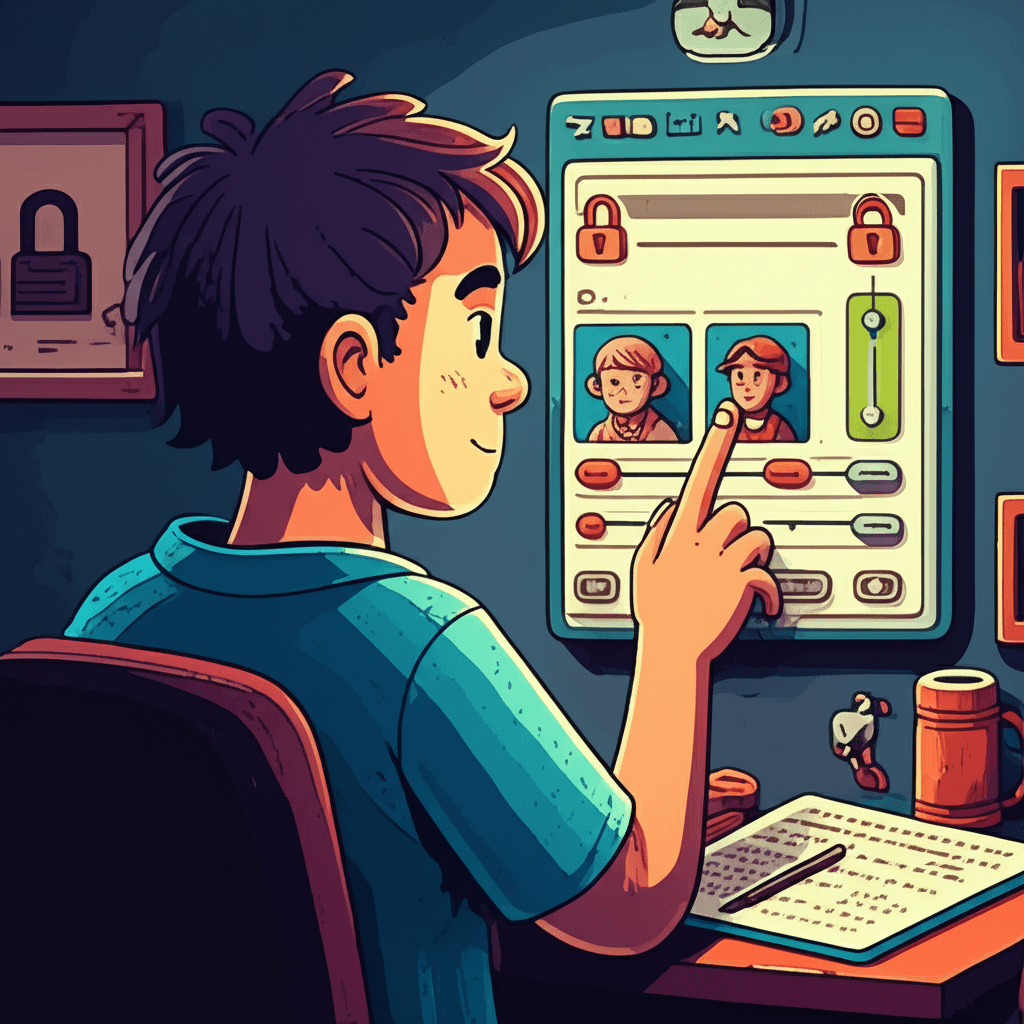
Here’s the checklist I walk through with every family member:
- Limit who sees your posts: Go Settings → Privacy → "Who can see your future posts?" Set to "Friends" or create a custom list for close family only.
- Turn off public search: Under Privacy, disable "Do you want search engines outside of Facebook to link to your profile?"
- Review tags: Go to Profile and Tagging → "Review tags people add to your posts" and turn it ON. This prevents random tags showing up without your approval.
- Limit friend requests: Set "Who can send you friend requests?" to "Friends of friends" so your child’s account isn’t flooded with random teenagers.
- Secure login alerts: Enable "Get notifications about unrecognised logins" so you know when someone tries to log into your account.
- Make accounts private: Settings → Privacy → Account Privacy → Private Account. Every Aussie teen should have this turned on before they even post a selfie.
- Control story viewers: Use "Close friends" lists for stories you only want family to see.
- Disable activity status: Settings → Privacy → Activity Status → turn OFF. You don’t need people knowing when you’re online.
- Limit comments: Under Privacy, you can block comments from people you don’t follow. I block accounts that look like bots or scammers (and there are plenty).
TikTok
- Private account: Settings → Privacy → Private account. This is the single biggest step.
- Restrict Duet, Stitch, and Comments: Set these to "Friends" or "No one." My daughter was thrilled to see her videos shared with friends, not random adults.
- Disable downloads: Turning off downloads stops strangers from reposting your content anywhere else.
- Family Pairing: Link your parent account for screen time limits and topic restrictions.
Snapchat and WhatsApp
- Snapchat: Settings → Who can… → set to "My Friends" for every setting including "Contact Me" and "View My Story." Disable location sharing (Snap Map) unless you’re with the actual group.
- WhatsApp: Settings → Privacy → Last Seen, Profile Photo, About → set to "My Contacts." Turn on two-step verification and only share your code with family.
How to Make Privacy a Family Routine
- Do a monthly audit: Go through each platform with your children. Look at "Apps and Websites" access and revoke any you don’t remember installing.
- Use a shared checklist: I put a whiteboard in the study with the privacy checklist. Kids tick off each setting with a dry-erase marker.
- Teach them to think before they share: Ask, "Who can see this?" and "Does anyone in this photo have permission?" before posting.
- Keep location services locked: The biggest privacy win is turning off location sharing for social apps unless it’s absolutely necessary. My wife only enables location for the Aussie Road Trips group when we’re on holiday.
Extra Tips for Parents
- Review the "Access" log: Most apps list which devices are logged in. Log out of anything suspicious.
- Use a password manager to keep social media passwords unique and complicated. Give your partner access if needed.
- Use parental controls: On iOS, Settings → Screen Time → Content & Privacy Restrictions lets you restrict explicit content and downloads. On Android, use Google Family Link for shared oversight.
- Keep the broadcast limited: When you share photos, avoid tagging exact locations or adding captions like "At the playground near [Your Street]." Instead, keep it vague—"Our favourite park" is enough.
When Something Goes Wrong
If someone you don’t know starts messaging your child, block and report immediately. Each platform lets you report harassment or impersonation. I treat it like removing a splinter—do it fast before it gets painful.
If an account gets compromised, use the platform’s recovery tool. Instagram has a "Get help logging in" page with clear Aussie-specific steps. You can also call Telstra or Optus—they have fraud teams that can lock down accounts linked to your phone number.
Keeping It Real and Achievable
These aren’t techie steps—they’re normal Aussie parenting. You handle the lunches, you can handle the privacy toggles. The idea is to lock things down so your family can keep enjoying the apps without drama.
Future you—scrolling through private photos, laughing at curated group chats, and not dealing with strangers at the doorstep—will definitely thank present you.