Last summer, my sister rang me in a panic. Someone had tried to transfer $3,000 from her Commonwealth Bank account to a crypto exchange in Estonia. Thankfully, they failed—because she'd just set up two-factor authentication the week before after I nagged her about it at Mum's birthday BBQ.
"I thought you were being paranoid, Mat," she admitted. Turns out, I wasn't paranoid enough.
If you're reading this wondering how to setup 2FA CommBank (and whether it's worth the hassle for your Australian bank accounts), let me save you the suspense: it absolutely is. And the good news? Setting it up is easier than assembling IKEA furniture, and you only have to do it once.
What Is 2FA and Why Should You Care?
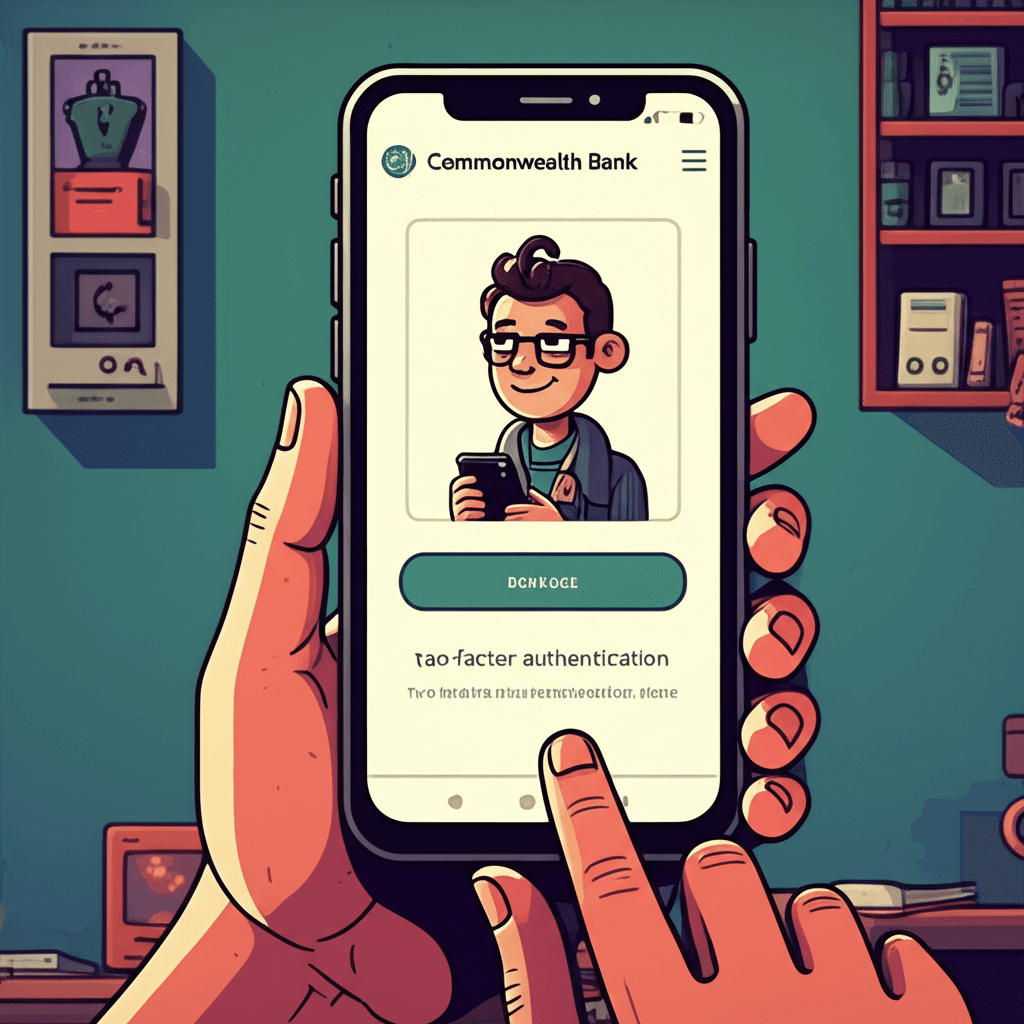
Two-factor authentication (2FA) adds a second layer of security to your online banking. Think of it like your front door—your password is the lock, but 2FA is the deadbolt. Even if someone guesses or steals your password, they can't get in without that second factor.
Most Australian banks now use app-based 2FA, which sends a push notification to your phone or generates a one-time code. It's the same technology myGov uses, so if you've set that up (and let's be honest, we all had to during tax time), you're already familiar with how it works.
Commonwealth Bank (CommBank)
CommBank makes 2FA relatively painless, which is good because they're Australia's biggest bank.
Step 1: Open the CommBank app and tap the profile icon (top left) Step 2: Go to "Settings" → "Security" Step 3: Tap "Two-factor authentication" Step 4: Follow the prompts to link your device Step 5: You'll receive a confirmation SMS—enter the code
The CommBank app will now send push notifications when someone tries to log in from a new device. I set this up for my mum last year, and she rang me excitedly the first time it worked: "Mat! The phone asked if it was me logging in!" Yes, Mum. That's the point.
Pro tip: CommBank also offers NetCode SMS as a backup, but the app notifications are more secure and don't cost you anything if you're overseas.
Westpac
Westpac calls their system "Westpac Protect", which sounds like a superhero team but is actually just decent security.
Step 1: Log into Westpac Online Banking Step 2: Go to "My Security" → "Two-factor authentication" Step 3: Select "Register for Westpac Protect" Step 4: Download the Westpac Protect app if prompted (though many features work with the main Westpac app now) Step 5: Verify your mobile number and complete the setup
Westpac's system can be slightly confusing because they have both the main banking app and the separate Protect app for some features. If you're setting this up for older family members, stick to the main Westpac app—it's simpler.
My father-in-law got tripped up by this, trying to use his old Protect app from 2019. We deleted it, reinstalled the main Westpac app, and had him running in five minutes.
ANZ
ANZ has streamlined their 2FA setup significantly over the past couple of years. Thank goodness.
Step 1: Open the ANZ App and log in Step 2: Tap "More" (bottom right) Step 3: Select "Settings" → "Security" Step 4: Tap "Two-factor authentication" Step 5: Follow the prompts to register your device
ANZ uses what they call "ANZ Shield," which generates codes within the app. One nice feature: if you lose your phone, you can call ANZ and they can verify your identity over the phone to restore access—though you'll need to answer some security questions that you'd better remember.
My tip: write down your ANZ Shield backup codes and store them somewhere safe (not on your phone). I keep mine in a locked drawer at home, next to my passport. Paranoid? Maybe. But I've seen too many people locked out of their accounts at the worst possible time.
NAB
NAB's 2FA system is straightforward and integrates well with their mobile app.
Step 1: Log into the NAB app Step 2: Go to "Settings" → "Security" Step 3: Select "Two-factor authentication" Step 4: Tap "Set up now" Step 5: Verify your mobile number via SMS Step 6: Choose your preferred 2FA method (app notification recommended)
NAB offers both app notifications and SMS codes. Go with the app notifications—they're faster and work even when you're overseas without roaming enabled (as long as you have Wi-Fi).
My neighbour learned this the hard way when she was in Bali and couldn't receive SMS codes. Now she uses the app notifications and hasn't had an issue since.
Macquarie Bank
For those with Macquarie accounts (popular for savings and investments):
Step 1: Log into Macquarie Online or the Macquarie Mobile Banking app Step 2: Navigate to "Settings" → "Security Centre" Step 3: Select "Two-factor authentication" Step 4: Follow prompts to link your device Step 5: Complete verification via SMS
Macquarie requires 2FA for high-risk transactions like transfers to new payees, which is sensible. Their app is actually quite good—my brother uses Macquarie for his investment property and swears by it.
ING (Orange Everyday)
ING keeps things simple, which I appreciate.
Step 1: Log into the ING app Step 2: Go to "Settings" → "Security" Step 3: Tap "Two-factor authentication" Step 4: Enter the SMS code sent to your phone Step 5: Setup complete
ING primarily uses SMS for 2FA, which isn't quite as secure as app-based methods but is still vastly better than no 2FA at all. If you're an ING customer, consider using a strong, unique password for your account to compensate.
What If You Switch Phones?
Here's where people get stuck. When you get a new phone, you need to re-authenticate all your banking apps. Do this BEFORE you wipe your old phone.
The safe way:
- Set up your new phone completely
- Download all banking apps
- Log into each one (it'll prompt for 2FA setup)
- Verify the new device
- Only then factory reset your old phone
I learned this lesson when my wife upgraded her iPhone. We wiped the old one first, then spent an annoying hour on hold with various banks getting access restored. Don't be like us.
The Bottom Line
Setting up 2FA on your Australian bank accounts takes about 30 minutes total. That's one episode of Bluey you can watch later. But those 30 minutes could save you thousands of dollars and months of stress if someone tries to access your accounts.
My sister's attempted fraud case? The bank flagged it immediately because the login came from an unusual location, and the 2FA prompt stopped the transaction cold. The would-be thief gave up and moved on to easier targets.
Don't be an easy target. Set up 2FA today. Future you—probably sitting on a beach somewhere, not stressing about fraudulent transactions—will thank present you.