My 12-year-old daughter came home from school last term and announced that "everyone" had TikTok. Everyone, apparently, except her. I did what any cyber-security-paranoid dad would do: I downloaded the app myself first to see what we were dealing with, because I wanted to make sure I understood TikTok privacy settings for parents before handing it back to her.
Three hours later, I emerged from a rabbit hole of dance challenges, cooking hacks, and oddly satisfying cleaning videos. TikTok is addictive—that's clear. But it's also a data collection machine that would make ASIO blush. The good news? By locking in TikTok privacy settings for parents, your kids can enjoy the creative side of TikTok without broadcasting their lives to the entire internet.
Here's exactly what to do, step by step.
Start With the Hard Conversation
Before we dive into settings, let's be real: privacy settings don't replace parenting. Sit down with your kid and explain why these settings matter. My daughter and I had a chat about digital footprints, online strangers, and how "private" doesn't always mean private on the internet.
She rolled her eyes initially (as tweens do), but something clicked when I showed her how easy it was to find someone's school from the background of their videos. "Oh," she said. "That's creepy."
Yes. Yes, it is.
Step 1: Make the Account Private (Non-Negotiable)
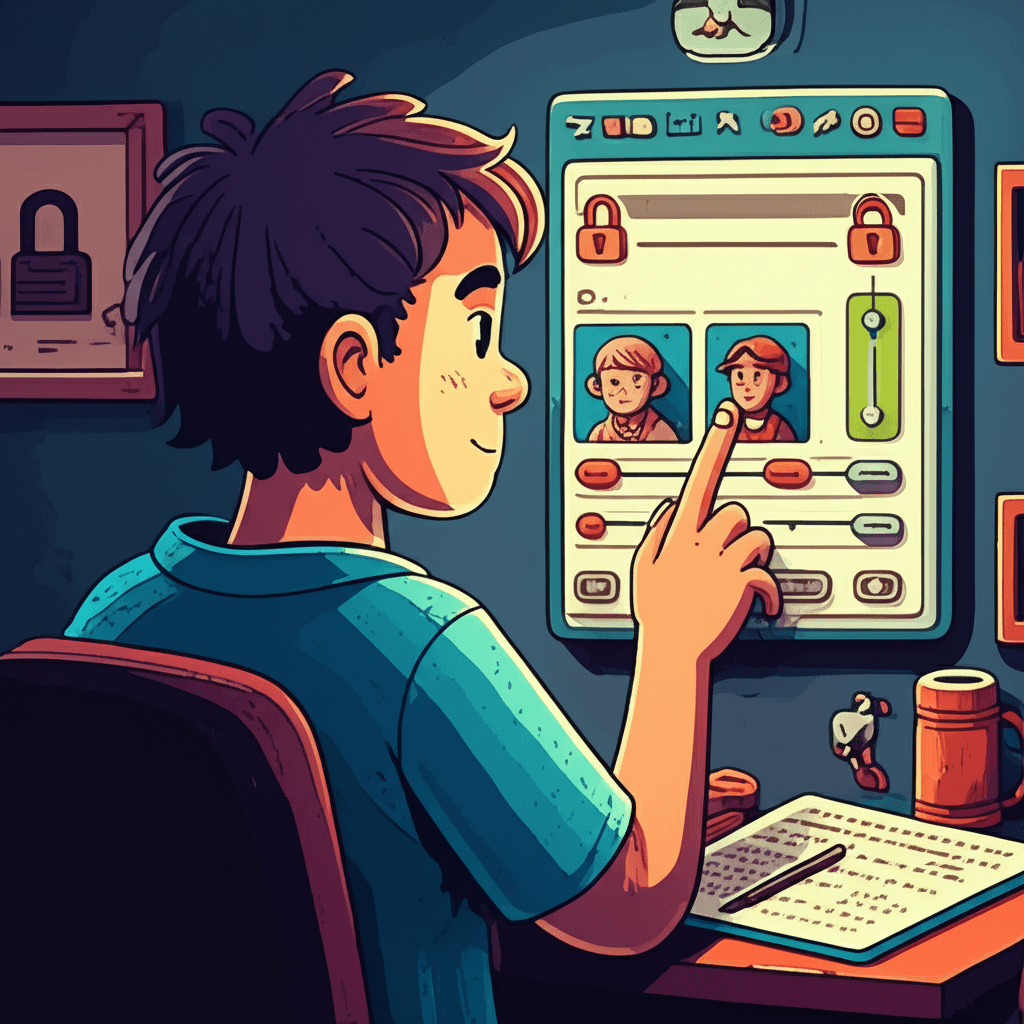
This is the big one. A public TikTok account means anyone on the internet can see your child's videos, follow them, and message them.
How to set it to private:
- Open TikTok and go to your child's profile
- Tap the three-line menu (top right)
- Select "Settings and privacy"
- Tap "Privacy"
- Toggle "Private account" ON
When the account is private, only approved followers can see videos. Random strangers can't browse their content. This one setting eliminates 90% of the privacy risks.
My rule for my daughter: private account, or no account. She agreed without much fuss once she understood that "private" still lets her share videos with friends—just not the whole world.
Step 2: Lock Down Who Can Interact
Even with a private account, you want to restrict who can contact your child and interact with their content.
Comments:
- Go to Settings → Privacy → Comments
- Set to "Friends" (people they follow back) or "No one"
Duet and Stitch:
- These let other users use your child's video in their content
- Go to Settings → Privacy → Duet and Stitch
- Set both to "Friends" or "No one"
Downloads:
- Prevents strangers from saving your child's videos
- Settings → Privacy → Downloads
- Toggle OFF
Liked videos:
- Hides what videos your child has liked
- Settings → Privacy → Liked videos
- Set to "Only me"
My daughter initially wanted comments from everyone because "that's how you get famous." We compromised on "Friends" and I explained that internet fame isn't worth the comments from random adults that inevitably appear on popular videos.
Step 3: Turn Off Personalized Ads
TikTok builds a profile of your child to show them targeted ads. You can limit this:
- Settings → Privacy → Ads personalization
- Toggle OFF "Using off-TikTok activity for ad targeting"
- Go to "How your ads are personalized"
- Turn off any categories you don't want them targeted by
This won't stop all ads, but it limits how much TikTok knows about your child's interests and behaviour.
Step 4: Disable Location Services
TikTok doesn't need to know where your child is. Full stop.
In TikTok:
- Settings → Privacy → Location services
- Turn OFF "Allow TikTok to access your location"
On the device:
- iPhone: Settings → Privacy & Security → Location Services → TikTok → Never
- Android: Settings → Apps → TikTok → Permissions → Location → Deny
I've seen too many videos where kids accidentally reveal their suburb, school, or even home address through location tags and background details. Turning off location services removes one more data point.
Step 5: Restricted Mode and Screen Time
TikTok's algorithm is scarily good at keeping people watching. Set some boundaries.
Restricted Mode:
- Filters out mature content
- Settings → Content & Display → Restricted Mode
- Toggle ON and set a PIN (don't tell your kids this PIN)
Screen Time:
- Settings → Content & Display → Screen time
- Set daily limits
- Enable "Schedule screen time breaks" (forces a pause every set interval)
My daughter gets 45 minutes on weekdays and 90 minutes on weekends. When the limit hits, the app locks. She complained for about a week, then adjusted. Kids are adaptable.
Step 6: Family Pairing (The Secret Weapon)
TikTok actually has a decent parental control feature called Family Pairing. You link your account to your child's account and can manage settings remotely.
To set it up:
- Both you and your child open TikTok
- Both go to Settings → Family Pairing
- Your child selects "Teen"
- You select "Parent"
- Scan the QR code to link accounts
Once linked, you can:
- Set screen time limits
- Restrict content (even beyond Restricted Mode)
- Disable direct messages
- Turn on "Search" restrictions
I use Family Pairing with my daughter. She knows I can see her settings, which keeps us both honest. It's not about spying—it's about teaching responsible digital habits with guardrails in place.
Step 7: Regular Check-ins
Privacy settings aren't "set and forget." TikTok updates frequently, and kids are curious. Once a month, I sit down with my daughter and we review:
- Who she's following (and who's following her)
- Her privacy settings (to make sure they haven't changed)
- Any messages she's received
- What videos she's posted
It's a 10-minute conversation that keeps us both aware of what's happening. She knows I'm involved, not because I don't trust her, but because the internet is full of people I don't trust.
Red Flags to Watch For
Even with perfect settings, stay alert for these warning signs:
- Adult followers you don't recognise: Check their follower list regularly
- Requests to move conversations to other apps: Snapchat, WhatsApp, or Discord
- Comments asking personal questions: "What school do you go to?" "Where do you live?"
- Video challenges that seem odd: Some are designed to extract personal information
- Gifts or money offers: Predators use these to build trust
If you see any of these, it's time for a serious conversation and possibly deleting the account.
The Reality Check
Here's the truth: no privacy setting is perfect. Determined strangers can still find ways to contact your kids. The best protection is an open relationship where your child feels comfortable telling you when something feels off.
My daughter knows she can come to me about anything online—no judgment, no punishment. When someone she didn't know tried to message her (before we locked down DMs completely), she told me immediately. We blocked and reported the account together.
That's the goal: a kid who knows how to use technology safely and isn't afraid to ask for help.
Final Thoughts
TikTok isn't inherently evil. My daughter has learned dance routines, discovered new music, and yes, bonded with friends over shared interests. But like any tool, it needs to be used properly.
Spend 15 minutes setting up these privacy controls. Have the conversations. Check in regularly. Your child's digital safety is worth far more than the temporary hassle.
And remember: you're not being paranoid. You're being a parent.